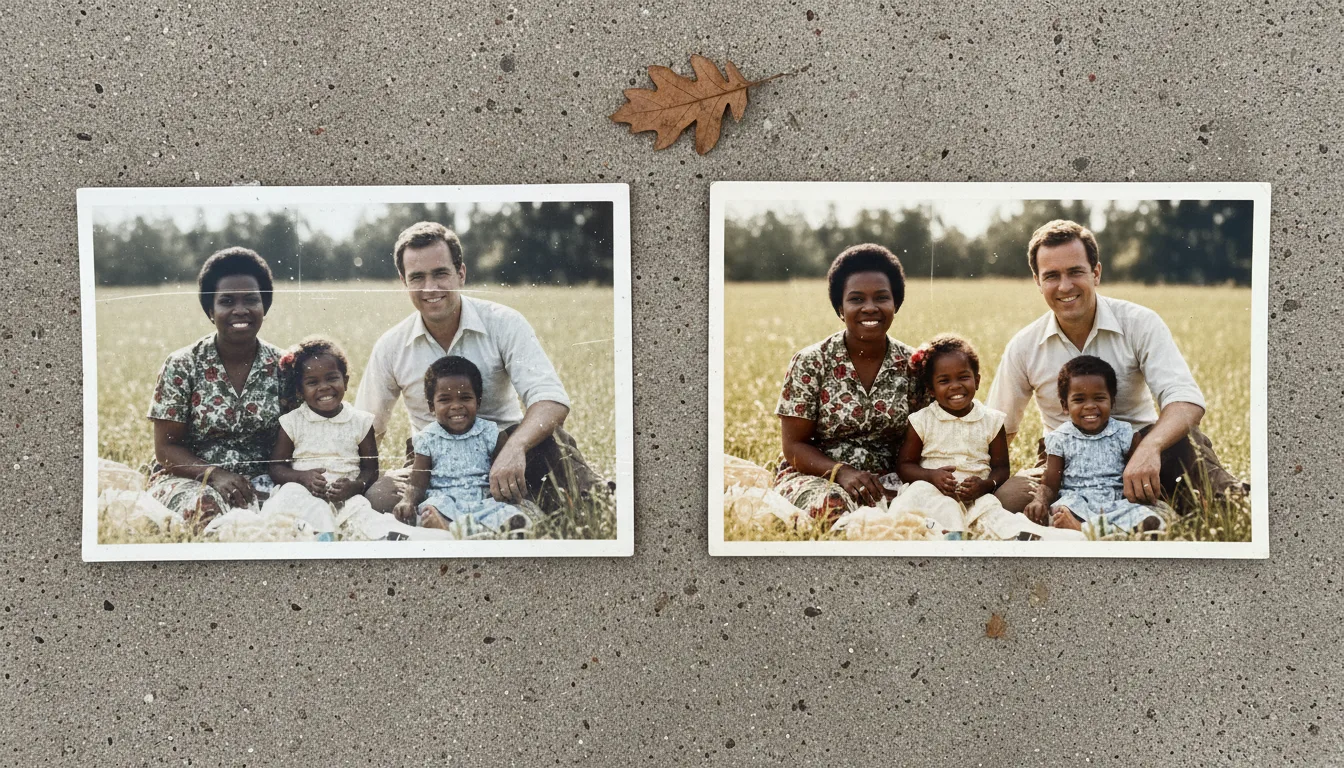
Guide · Scanning
How to scan old photos with an iPhone
Your iPhone is an excellent photo scanner when you set it up right. Here are the settings, lighting, and technique for sharp, glare-free digital copies of your old prints.
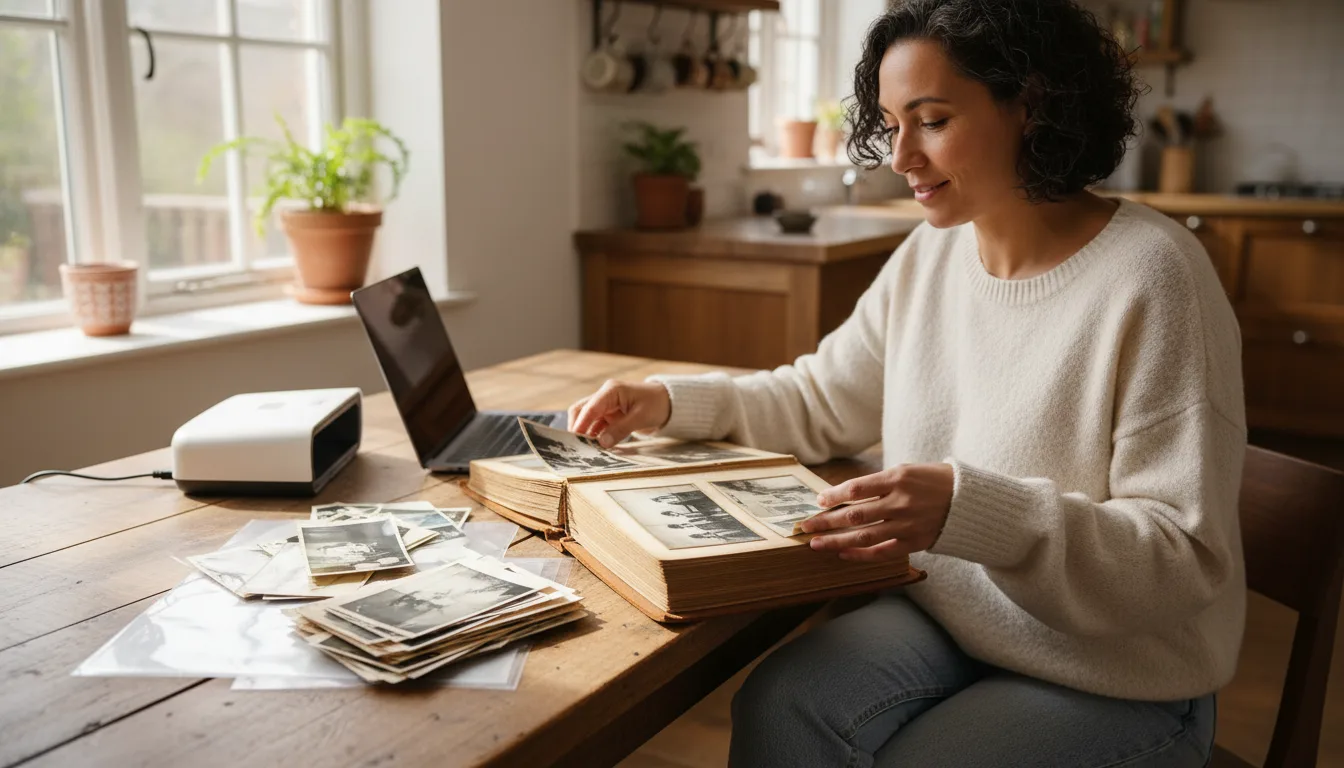
An iPhone captures family photos beautifully — often faster and just as sharp as a flatbed scanner. The trick is good light, a steady hand, and a couple of camera settings.
Set up your iPhone camera
- Open the Camera app and choose the 1x main lens (sharpest and least distorted).
- Turn the flash off — flash causes harsh glare on prints.
- Tap the photo to focus, then press and hold to lock focus and exposure so they don’t drift.
- Keep HDR on to capture detail in both shadows and highlights.
- Shoot at the highest resolution available in Settings → Camera → Formats.
Light it well
Place the print near a window with soft, indirect daylight, or use two lamps at 45° angles on either side. Avoid a single overhead light, which reflects straight back into the lens. Even, diffuse light is the single biggest factor in scan quality.
Hold steady and frame square
Rest your elbows on a table or use a small tripod. Position the phone directly above the print, keeping it parallel so the edges stay straight. Fill most of the frame with the photo while keeping all four corners visible.
Batch tip
For a whole album, a dedicated scanning app that auto-crops and straightens each shot will save time. But for your most precious photos, a careful capture in the Camera app gives you the cleanest source to restore and colorize.
Next steps
Got your scans? Upload them to restore old photos, then enhance faces and animate. For enlargements, first read scanning in high resolution.