
Guide · Memory videos
How to make a memory video with photos
Anyone can drop photos into a video app. Making one that actually moves people comes down to five decisions — most of which happen before you touch any software.
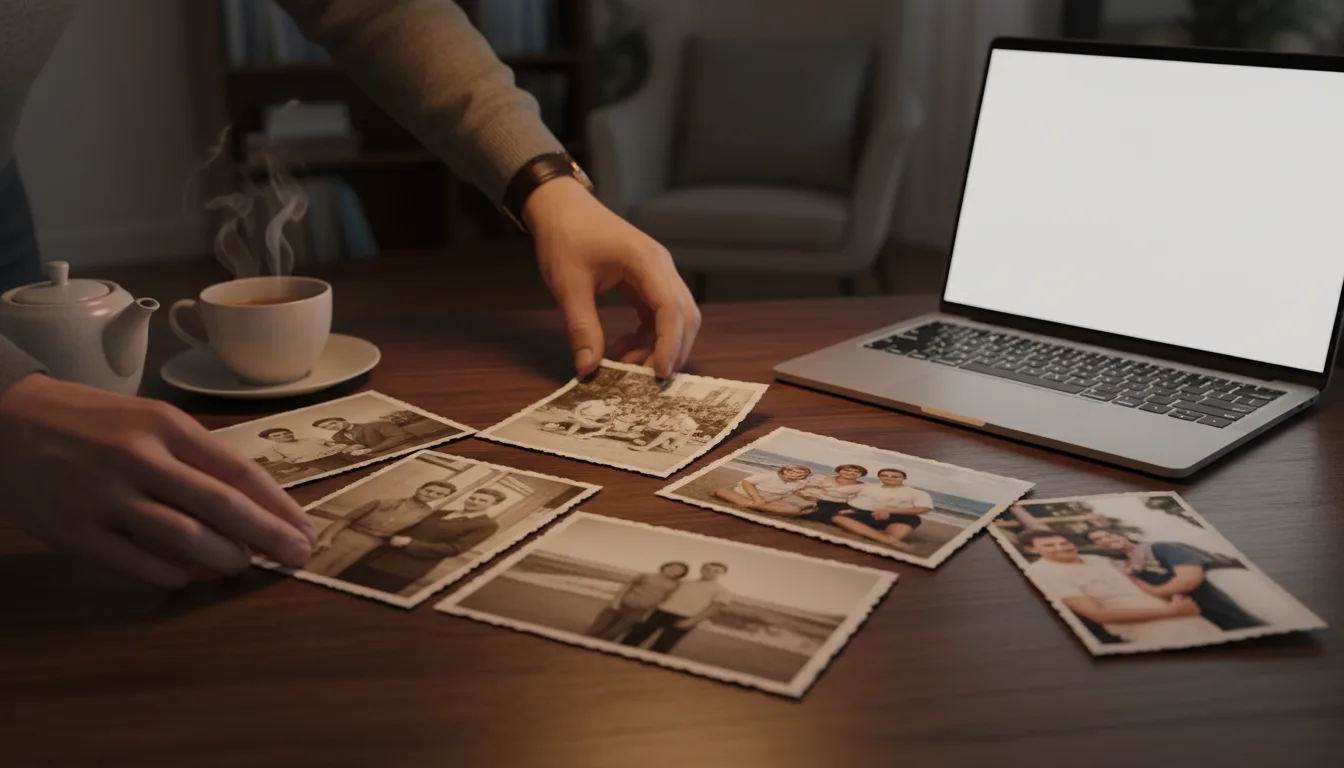
This is the general-purpose memory video method — for birthdays, anniversaries, memorials, or no occasion at all. Follow the five steps in order; each one makes the next easier.
The part nobody tells you: it’s an editing job, not a software job
Search “how to make a memory video” and you’ll find app tutorials — which screen to tap, where the export button lives. But the tools were never the hard part. The hard part is editorial: which ten images, in what order, under which song, to produce which feeling. Get those right and any competent tool delivers; get them wrong and no transition pack saves it.
That’s why this guide’s first two steps involve no software. The one-word feeling, the 3–10 photo cut, the chapter-per-photo discipline — that’s the actual craft, and it’s fully learnable in one project.
Where the AI route changes the game
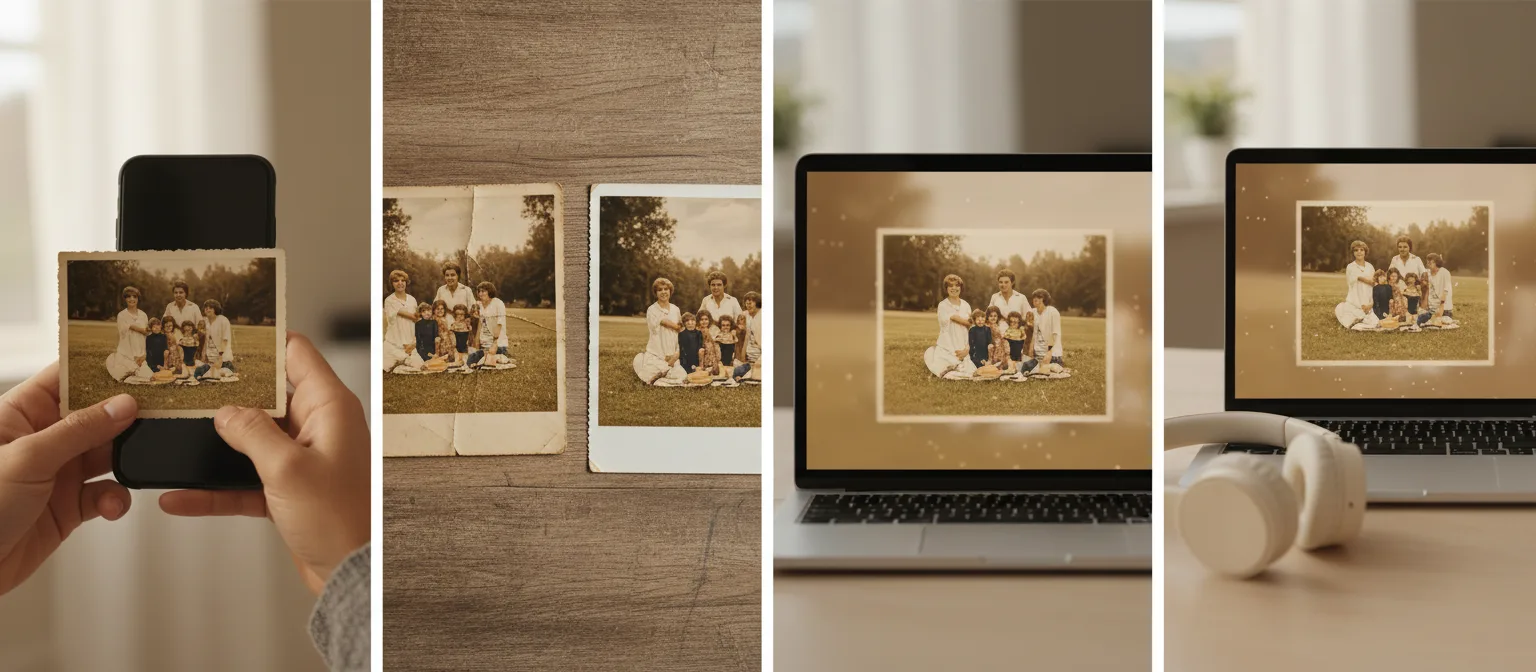
Two places. Restoration: memory videos lean on old photos, and old photos arrive faded, creased, and yellow. Free restoration means the 1974 print holds the screen next to last year’s phone shot. Motion: instead of the Ken Burns pan every slideshow app applies, FotoRipple animates inside the photograph — faces gently move — which is the difference between describing a memory and briefly rejoining it. The five steps stay the same; the ceiling rises.
How it works
- 1Decide the feeling first. Celebration, gratitude, remembrance, nostalgia — one word. Every later choice checks against it.
- 2Choose 3–10 photos that earn their place. One per chapter of the story; cut duplicates ruthlessly.
- 3Fix the photos before assembling. Restore fading and damage (free with FotoRipple), colorize monochrome if it suits the feeling.
- 4Order for story, choose music for feeling. Chronological is the reliable default; the song should belong to the subject, not the charts.
- 5Animate and assemble. Gentle AI motion inside each photo turns the sequence from slideshow into film; add the track, export, share.
Tips for the best result
- The one-word feeling test kills most bad decisions: a meme-ish photo rarely survives 'remembrance.'
- End on your strongest image — final clips are what viewers carry away.
- Keep it to one song's length. If it needs two songs, it's two videos.
- Preview on a phone *and* a TV; family videos get watched on both.
- Save your photo selects and the finished file somewhere shared — memory videos get requested again for years.